How to Reduce Image File Size for Email
Why Photos Are Too Big for Email — and the Fix
Modern phone photos are 2–12 MB each, but most email providers cap attachments at 25 MB including the ~33% encoding overhead — so a single camera photo can already break the limit. The fix is a two-step pipeline, resize then compress, which routinely shrinks a 12 MB photo to under 400 KB with no visible quality loss on screen.
TL;DR — Resize first, compress second, and any phone photo fits any email provider:
- Attachment limits: Gmail, Outlook/Hotmail, Yahoo, and ProtonMail cap emails at 25 MB (iCloud at 20 MB) — including encoding, so keep photos under ~10 MB to be safe.
- The fix: resize to ≤1920px wide, then compress at 70–80% JPG quality — a typical 12 MB photo drops to 200–500 KB, small enough to attach five per email.
- Real example: an iPhone 15 photo (7.8 MB HEIC) converted to JPG (12.1 MB) → resized to 1920px (2.4 MB) → compressed at 75% (352 KB) — 97% smaller, still sharp on any screen.
- Quality is safe: at 70–80%, the loss is imperceptible on screen — the 5–10× size reduction outweighs it; keep 85–92% only for documents or print.
- HEIC needs no separate step: the [Prepare Photo for Email](/prepare/email-attachment/) tool converts HEIC to JPG as part of the same workflow — output is always a standard JPG.
The Problem: Modern Photos Are Too Big for Email
A single photo from a modern smartphone is 2–12 MB. An iPhone 15 Pro shoots at 24 or 48 megapixels in HEIC format — that's one photo approaching 8 MB right out of the camera. Meanwhile, email attachment limits haven't changed in over a decade.
Add a second photo, or try sending uncompressed images from a DSLR, and you'll hit the wall. The email bounces, or the recipient gets a Google Drive link instead of the actual photo. Neither is a good experience.
The good news: you can shrink photos by 90% or more without any visible quality loss on screen. Here's exactly how.
Email Attachment Size Limits by Provider
| Provider | Attachment Limit | Includes Encoding Overhead? |
|---|---|---|
| Gmail | 25 MB | Yes — 25 MB total email size including body text |
| Outlook / Hotmail | 25 MB | Yes — encoding adds ~33% overhead |
| Yahoo Mail | 25 MB | Yes — same as Gmail |
| iCloud Mail | 20 MB | Yes — with free 5 GB iCloud limit |
| ProtonMail (free) | 25 MB | Yes |
Important: Email encoding (MIME) adds roughly 33% overhead. A 19 MB photo becomes ~25 MB after encoding, hitting Gmail's limit. That's why keeping photos under 10 MB is the safest bet — it leaves room for multiple attachments and encoding overhead.
The One-Step Solution: Resize + Compress Together
Instead of bouncing between two separate tools, use our Prepare Photo for Email tool — it handles both resize and compress in one step:
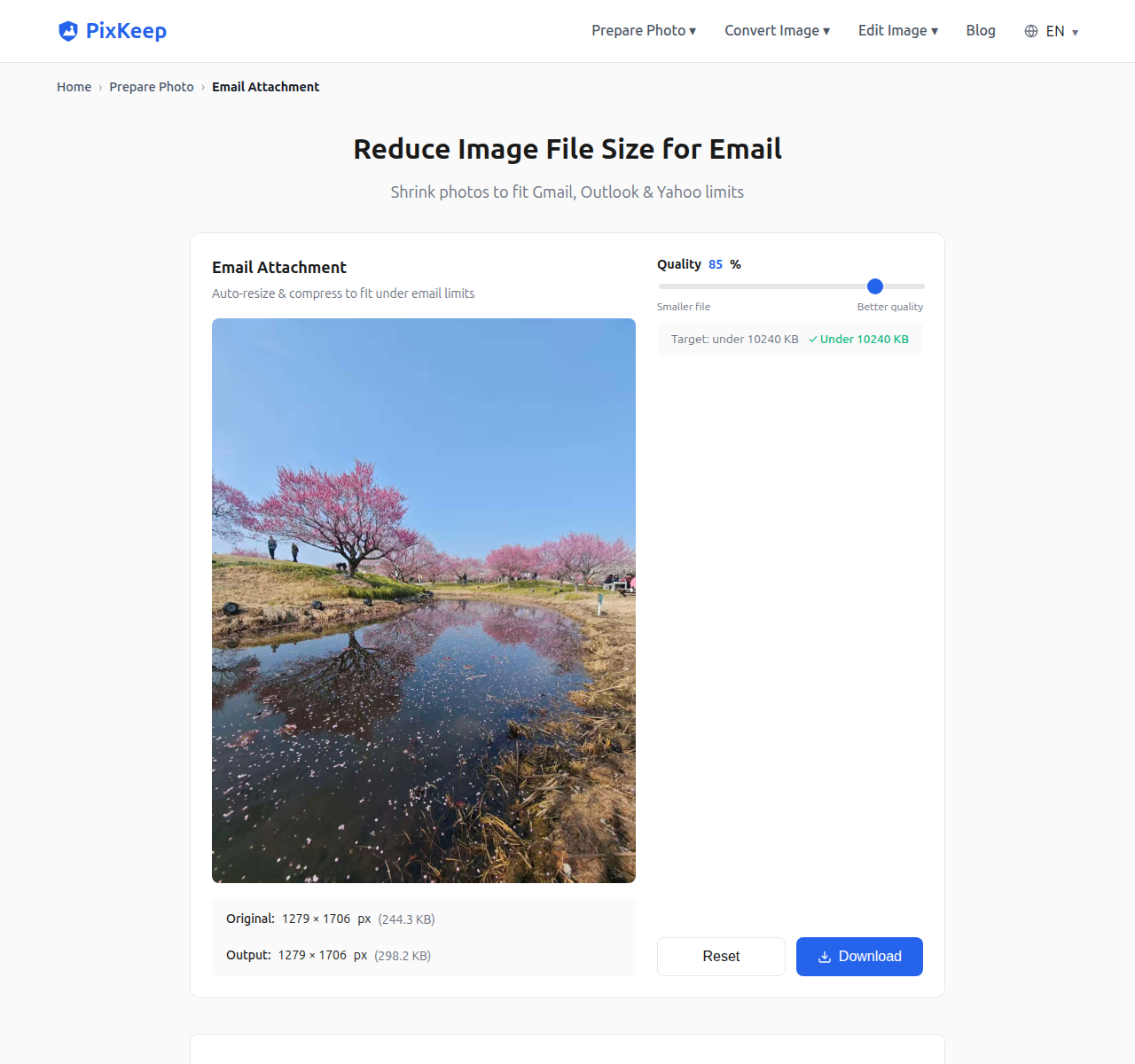
- Upload any photo (JPG, PNG, WebP, or HEIC)
- The tool automatically resizes it to fit within 2048×2048 pixels — keeping the original aspect ratio, no forced cropping
- Adjust the quality slider (70-80% is the sweet spot for email)
- Download a perfectly sized photo
Upload any photo, adjust the quality slider, and download — the auto-resize and compression happen together. A typical 12MB phone photo shrinks to 200–500KB in seconds.
Try it now: Prepare Photo for Email — free, no uploads, works in your browser.
Real Example: 12 MB → 350 KB
Here's a real-world demonstration using a photo taken on an iPhone 15:
| Stage | Dimensions | File Size | Reduction |
|---|---|---|---|
| Original HEIC | 4284 × 5712 | 7.8 MB | — |
| Converted to JPG | 4284 × 5712 | 12.1 MB | JPG is larger at full res |
| Resized to 1920px | 1920 × 2560 | 2.4 MB | 80% smaller |
| Compressed at 75% | 1920 × 2560 | 352 KB | 97% smaller than original |
A 12 MB file became 352 KB — small enough to attach five of these in a single email. And at 1920 × 2560 with 75% quality, it looks sharp on any screen.
What About HEIC Photos?
If you're on an iPhone, your photos are in HEIC format. The Prepare Photo for Email tool handles HEIC files natively — it converts them to JPG as part of the process. No separate conversion step needed. The output is always a standard JPG that any email recipient can open.
Batch Processing: Compress Multiple Photos at Once
Need to send 10 vacation photos? Upload all 10 to the Image Compressor, set the quality to 75%, and download them all compressed in one click. The batch mode processes photos sequentially and gives you a single download for each file. Much faster than compressing one by one.
Quick Reference: How Small Should Your Photos Be?
| Use Case | Recommended Size | Dimensions | Quality |
|---|---|---|---|
| Casual photo share | 200-500 KB | 1200px | 75% |
| Important document scan | 500 KB - 1 MB | 1920px | 85% |
| Photo for printing | 2-5 MB | Full resolution | 92% |
| Professional portfolio | Use file sharing | — | — |
Frequently Asked Questions
How do I reduce image file size for email?
Two steps: resize then compress. First, use an image resizer to reduce pixel dimensions (1920px wide is plenty for email viewing). Then, use a compressor to lower JPEG quality to 70-80%. Together these steps typically shrink a 12MB phone photo to under 500KB — small enough for any email provider.
What happens if I email a photo that's too large?
If your attachment exceeds the provider's limit, the email will bounce back with a "message too large" error. Some providers like Gmail automatically upload oversized attachments to Google Drive and send a link instead, but that's not a great experience for the recipient. It's better to shrink the photo before sending.
Does compressing photos for email reduce quality?
At quality settings of 70-80%, the quality loss is imperceptible on a screen — especially for photos viewed as email attachments. The file size reduction (often 5-10x) far outweighs the minimal visual difference. If you need to preserve maximum quality for printing, send via a file sharing service instead of email.
Can I batch compress multiple photos for email?
Yes. PixKeep's Image Compressor handles up to 50 photos at once. Upload them all, adjust the quality slider to your preferred setting, then download each one — or grab everything as a single ZIP once two or more are ready. This is far faster than compressing one at a time, especially when sending vacation or event photos.
Privacy Note
All the tools mentioned in this guide run entirely in your browser. Your photos never leave your device — there are no server uploads, no cloud processing, and no privacy risk. Even EXIF metadata (GPS location, camera model, timestamps) is automatically stripped from output files.